Getting Started
Your step-by-step guide to signing up and completing your onboarding.
Prefer a video walkthrough?
Watch the complete 3-minute video tutorial covering all registration and Web3 activation steps.
3-Phase Quick Overview
| Step | Action | Description | Time |
|---|---|---|---|
| Phase 1: Registration | ~2 mins | ||
| 1 | Create Account | Enter your details and optional sponsor referral code. | |
| 2 | Email Verification | Enter 6-digit verification code sent to your inbox. | |
| 3 | Identity & Profile | Set display name, contact details & optional KYC. | |
| Phase 2: Connect Wallet & Activate | ~3 mins | ||
| 4 | Connect Web3 Wallet | Link MetaMask, WalletConnect, or preferred wallet. | |
| 5 | Foundation Fee | Pay 100 USDT or USDC (ERC-20) plus a small ETH gas fee. | |
| Phase 3: Dashboard & Token Rewards | Instant | ||
| 6 | Unlock Dashboard | Access your referral kit, claim your welcome tokens, and track your stats! | |
| Total Estimated Onboarding Time: | ~5 mins | ||
PHASE 1
~2
mins
Register & Profile Setup
1
Create Account
Enter basic details & sponsor code.
2
Email Verification
Enter 6-digit PIN code.
3
Identity & Profile
Set handle & profile details.
PHASE 2
~3
mins
Connect Wallet & Activate
4
Connect Web3 Wallet
Link MetaMask or WalletConnect.
5
Foundation Fee
Pay 100 USDT/USDC (ERC-20).
PHASE 3
Instant
Dashboard & Token Rewards
6
Unlock Dashboard
Access referral kit & 1,000 SGE
tokens!
Total Time:
~5 mins
Want to watch the process in action?
Watch the 3-minute video guide with visual callouts and narration for every step.
PHASE 1
~2
Mins
Register & Profile Setup
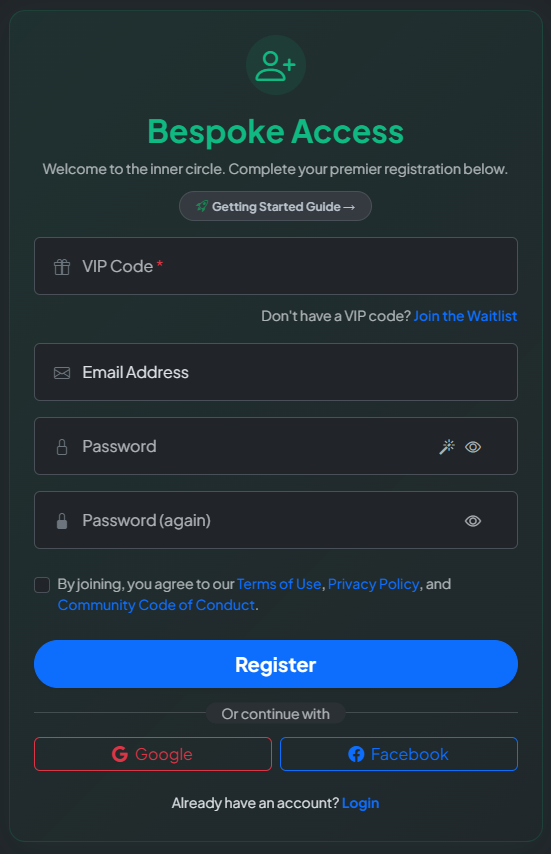
- Navigate to https://sge.foundation/register (or click a referral link provided by your sponsor).
- Fill out the registration form:
- VIP Code (Auto-filled if using a referral link)
- Email Address
- Password (must meet security requirements)
- Review and accept the Terms of Service and Privacy Policy.
- Click "Register".
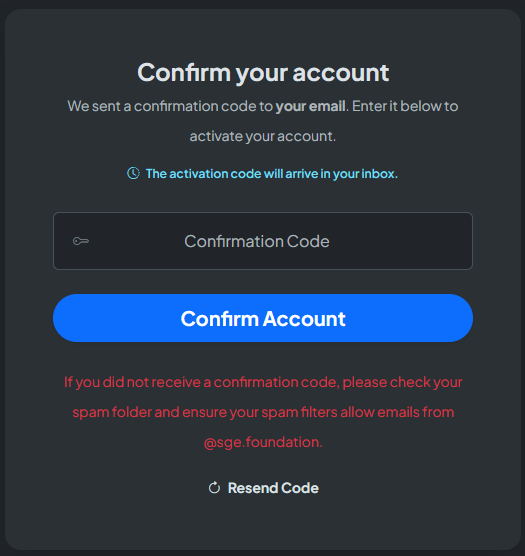
- Open your email inbox and look for an email from SGE Foundation Support containing your 6-digit verification code.
- Enter the 6-digit verification code on the verification screen.
- Click "Confirm Activation" to confirm email verification.
If you don't see the email within 2 minutes, check your
Spam/Junk folder or click "Resend Code" on the
verification screen.
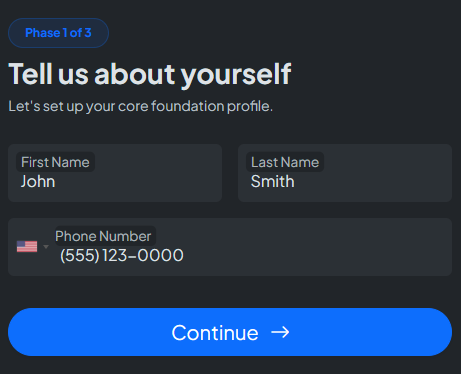
- Profile Setup: Provide your first name, last name, and phone number inside the wizard.
- KYC Verification (If Required): Follow the prompt to submit identity details. For standard account, verification is instant.
PHASE 2
~3
Mins
Connect Wallet & Activate Account
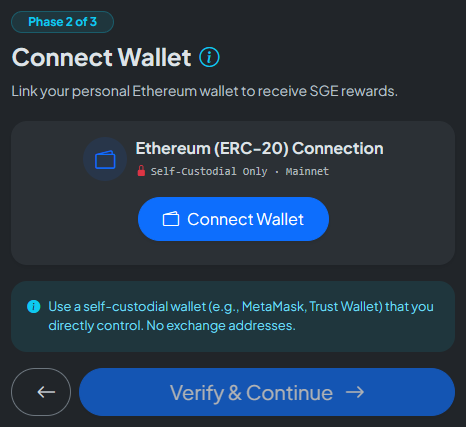
- Click "Connect Wallet" in the wizard interface.
- Choose your preferred provider:
- MetaMask (Browser extension or mobile app)
- WalletConnect (Scan QR code with MetaMask, Trust Wallet or any other WalletConnect compatible wallet)
- Approve the read-only connection request in your wallet app.
Security Guaranteed: Connecting your Web3 wallet is strictly
non-custodial and read-only. It never exposes your private keys
or grants control over your funds.
What You'll Need:
- 100 USDT or 100 USDC (ERC-20 on Ethereum Mainnet) — Foundation account activation fee.
- A minimum balance of 3 USD in ETH is required to cover network gas fees (though actual costs typically run under 3 USD).
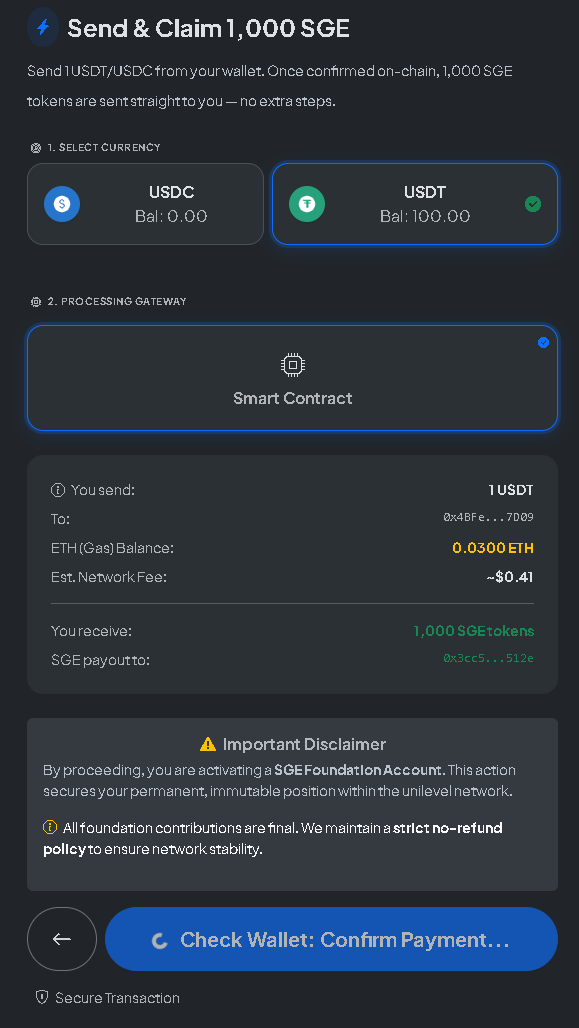
- Select your preferred payment currency:
- USDT or USDC (Ethereum Mainnet – ERC-20)
- Click "Check Wallet: Confirm Payment" and approve the transaction in your Web3 wallet.
- Once confirmed on the blockchain, the wizard automatically updates to "Payment Confirmed" and transfers 1,000 SGE Tokens to your wallet.
Important Payment & Wallet Tips:
- Multiple Wallet Prompts: Your wallet (MetaMask, Trust Wallet, etc.) may request 2 sequential approvals — first to set the ERC-20 spending cap allowance, and second to execute the payment transaction.
- Please Be Patient: On-chain validation takes a moment depending on Ethereum network traffic.
- Do Not Close/Refresh: Keep your browser open while processing. The wizard automatically advances to Phase 3 upon confirmation!
PHASE 3
Instant
Dashboard & Token Rewards
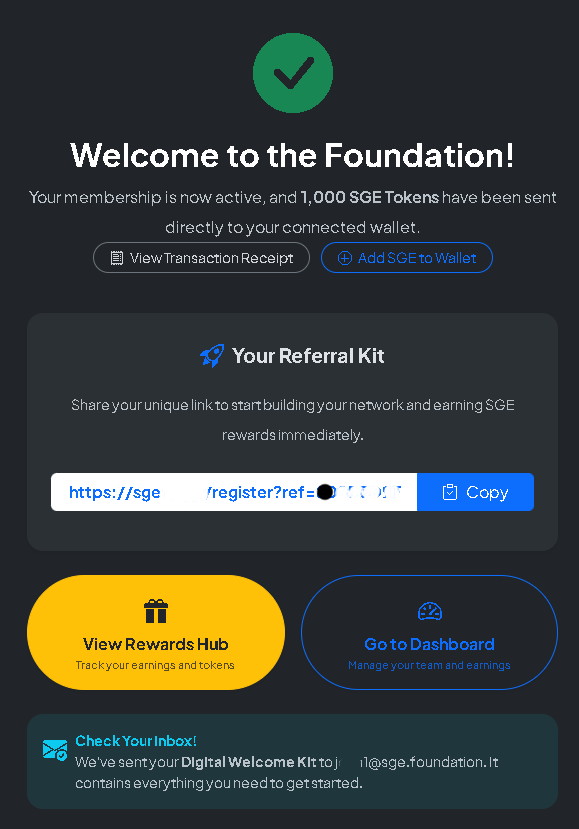
Congratulations! Your account is now fully active.
- Access Your Referral Kit: Your unique referral link is generated automatically. Click "Copy Link" to start sharing.
- View Rewards Hub: Click "View Rewards Hub" to check your Welcome Tokens distribution.
- Go to Dashboard: Click "Go to Dashboard" for real-time analytics and team overview.
- Digital Welcome Kit: A welcome email with your receipt and quick-start links has been sent to your inbox.
Automated Smart Contract Token
Distribution:
Upon successful payment of your account activation fee, your
1,000
Welcome SGE Tokens are automatically transferred
directly to your connected Web3 wallet on-chain by the smart
contract.
Because SGE is a native utility token, some Web3 wallets (Trust Wallet,
Coinbase Wallet, etc.) require adding it as a Custom
Token to display your balance:
- Open your Web3 wallet and tap "Import Tokens" or "Add Custom Token".
- Select Ethereum Mainnet (ERC-20).
- Contract Address:
0x40489719E489782959486A04B765E1E93E5B221a - Token Symbol:
SGE| Decimals:18
Official Video Walkthrough
Registration & Onboarding Video Guide
Follow along with our narrated, step-by-step tutorial from account creation to Web3 activation.
Watch on YouTube
3 Minutes
Chapter Jump Markers
Click any timestamp to jump directly to that section in the video:
Pro-Tip: Keep your browser tab open while confirming the wallet transaction. Once the Ethereum network verifies your activation payment, your membership unlocks automatically and your 1,000 SGE welcome tokens will be confirmed.
Create Your Account
Need help? Contact support@sge.foundation
Frequently Asked Questions
SGE is a functional utility token used exclusively within the SGE Foundation ecosystem and is not
currently
listed on public exchanges.
To view your tokens in Web3 wallets that don't auto-detect unlisted tokens (like Trust Wallet or other wallet):
To view your tokens in Web3 wallets that don't auto-detect unlisted tokens (like Trust Wallet or other wallet):
- Tap "Import Tokens" or "Add Custom Token" in your wallet.
- Network: Ethereum Mainnet (ERC-20)
- Contract Address:
0x40489719E489782959486A04B765E1E93E5B221a - Symbol:
SGE| Decimals:18
What You'll Need:
- 100 USDT or 100 USDC (ERC-20 on Ethereum Mainnet) — Foundation account activation fee.
- A minimum balance of 3 USD in ETH is required to cover network gas fees (though actual costs typically run under 3 USD).
Network congestion on the blockchain can occasionally delay confirmations. You can click "Check
Status" or verify the transaction hash on Etherscan. Your account will activate automatically
once a confirmation is received.
If your onboarding status shows "Awaiting Completion" or your payment transaction
appears stuck pending:
- Check Wallet Activity: Open your Web3 wallet (MetaMask, Trust Wallet, etc.) and check if there is an unapproved prompt waiting for your signature or approval.
- Verify ETH Gas Balance: Ensure you have at least 3 USD in ETH for gas fees, which typically cost less than 3 USD.
- Check On-Chain Status: Click "Check Status" in the wizard or search your wallet address on Etherscan.io to see if the transaction is pending.
- Speed Up or Retry: If gas prices spiked, tap "Speed Up" in your Web3 wallet to increase gas fees, or cancel the pending transaction in your wallet and click "Check Wallet: Confirm Payment" again.
- Refresh Onboarding Wizard: Once confirmed on-chain, simply refresh the wizard page or click "Check Status" to automatically unlock Phase 3.
Still stuck after 15 minutes? Contact our
support team at support@sge.foundation
with your wallet address.
Yes! You can update or link additional receiving wallet addresses under Account Settings
> Web3 Wallets inside your dashboard.
All commissions generated from your direct and unilevel network are visible under
Commissions & Rewards in your dashboard and paid out according to your withdrawal
preferences.
